When you buy a new Android smartphone, its home screen comes preloaded with many apps that you rarely need. Most people remove these apps and keep their favorite apps, but simply changing the apps doesn’t utilize the home screen’s true potential.
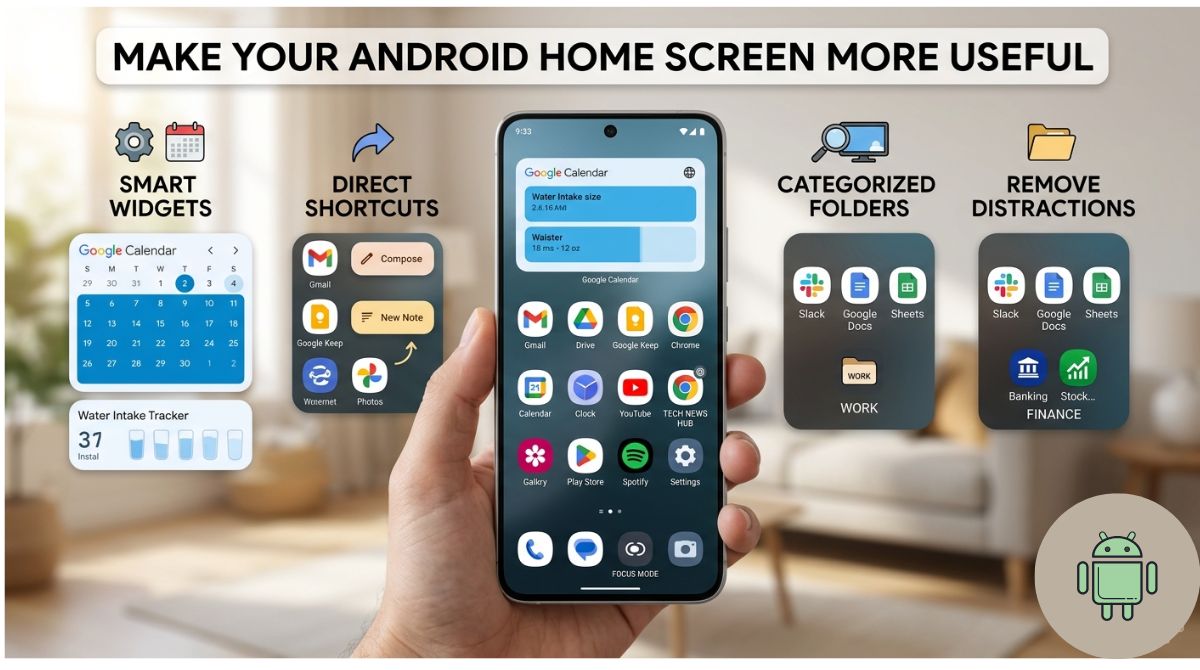
According to a recent report from BGR, you can transform your home screen from just a jumble of apps into a highly useful and smart “hub.” Here are five easy ways to make your smartphone experience faster and more organized:
1. Make Smart Use of Widgets
Instead of navigating through a multitude of apps, set up widgets on your home screen for daily tasks. Widgets let you quickly view key information and perform quick tasks without opening an app.
- What to do:Add widgets for things like Google search, water intake tracker, email, calendar, or to-do list.
- How to set:Long-press on an empty area on the Home screen >WidgetsTap Options > select your desired widget and drag it onto the screen. (If an app doesn’t have a widget, you can use third-party apps like Widgets or iWidgets).
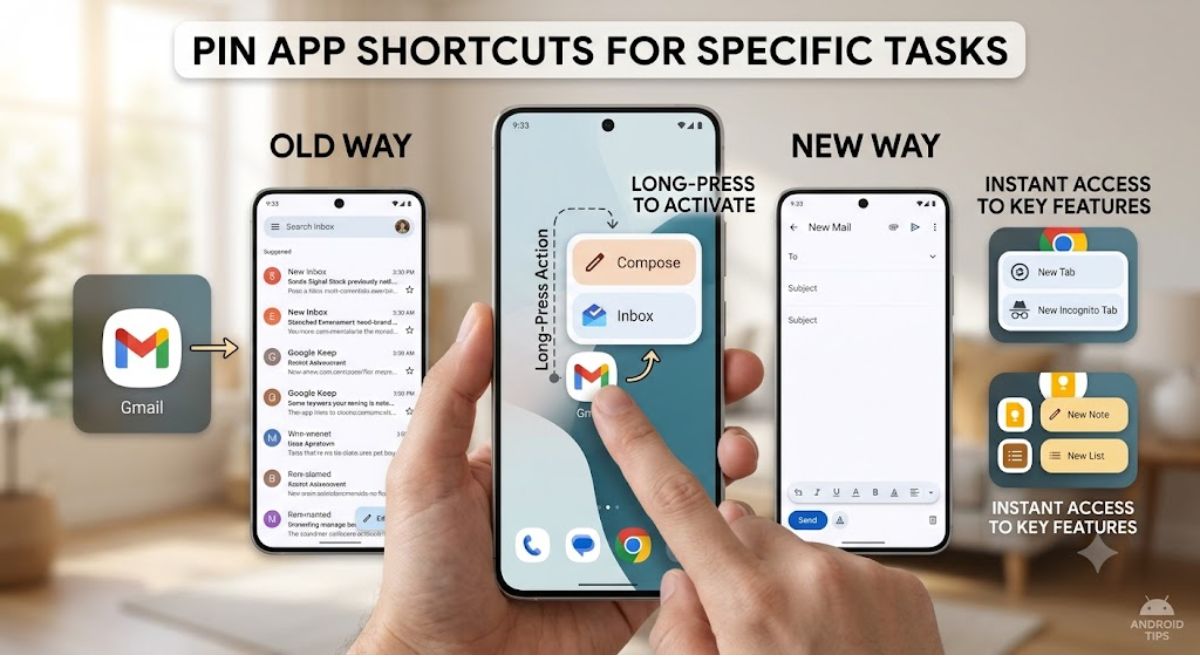
2. Pin App Shortcuts for specific tasks
Tapping an app icon normally opens its main page, butApp ShortcutsTakes you directly to a specific feature (like Chrome’s Incognito Mode or Gmail’s Compose Mail).
- Popular shortcuts:
- Chrome:Open a new tab or incognito tab.
- Gmail:Open the new email compose page directly.
- Google Keep:Quickly create a new note, list, or voice note.
- Zoom:Immediately go to the ‘Join Meeting’ or sign-in page.
- How to set:Go to the app drawer and long-press an app to see a list of available shortcuts. Drag the shortcut you want to your home screen.
3. Create Browser Shortcuts to Favorite Websites
If you visit certain websites every day (like news, bank portal, or office work portal), then there is no need to open the browser again and again and type the URL.
- How to set:Open the relevant website in your mobile browser (Chrome, Edge, Firefox, Samsung Browser, etc.). Go to the menu (three dots) and‘Add to Home screen’Come‘Install Shortcut’Select.
- Now that website will appear on your home screen like an app and will open with a single tap.
4. Categorize apps and use folders
To keep the home screen clean and organized, keep only the 8 to 10 most important apps on the main screen.
- Create folders:To organize apps, drag and drop one app on top of another. This will create a folder.
- Create a category:You can create separate folders named ‘Work’, ‘Finance’, ‘Communication’, and ‘Tools’ and keep the relevant apps in them.
5. Reduce Distractions and Adopt a Minimalist Launcher
The home screen is the first thing you see when you unlock your phone. If there are icons for Instagram, Facebook, or games there, you could be wasting your time unnecessarily.
- Delete social media:Remove distracting apps and games from the home screen so you don’t get caught up in reels or gaming as soon as you open your phone.
- Minimalist Launcher:If you want to reduce your screen time, download it from Google Play Store.Minimalist PhoneComeOlauncherFor example, you can use a minimalist launcher. These remove all the flashy wallpapers and colorful icons from the home screen, allowing you to focus solely on text and essential tasks.
Read More
- Smart Business Opportunity: Learn to Use ChatGPT for Just $20
- Facebook-Instagram Down: Meta servers crash, millions of users worldwide suddenly logged out
- ndroid is Changing Forever! Google Play Store’s biggest update drops July 22
- The Google Play Store is about to undergo a major overhaul! Starting July 22nd, the entire Android game will change
- Is X (Twitter) Down?
- What is AI Prompt Engineering and How to Earn Money in 2026?