
How to Compress PDF: The Easiest Way to Reduce File Size
Has it ever happened to you that you had to send an important PDF file via email, but the file was so large that it wouldn’t upload? Or did you have to send a resume PDF for a job application, and the portal said, “The file size must be less than 25MB”? This problem is very common these days—whether it’s a college assignment, a job resume, or an important office document.
The good news is that the solution to this problem is quite simple. Simply use a PDF Compressor tool to reduce your file size without compromising its quality. In this blog, we’ll discuss why PDF compression is important, how it works, and how to achieve the best results.
Why does the size of PDF file become so large?
Many people think PDF is a “light” file format, but there’s actually a lot hidden inside PDF:
- High-resolution images:- If the PDF contains scanned pages or photos, the file size increases immediately.
- Embedded fonts:-Many times the fonts used in the document are also saved inside the file.
- Multiple layers or metadata:- PDFs created with design software contain hidden extra data that is not visible but increases the size.
- Scanned documents:-When you scan a paper and create a PDF, it is actually an image, not text, hence the size is larger.
This is the reason why even a simple PDF of 5-10 pages sometimes reaches 20-30 MB.
Benefits of Compressing PDF
Compressing PDFs has many practical benefits beyond just attaching to emails:
- Fast upload and download,Smaller files are uploaded/downloaded faster, especially when the internet speed is slow.
- Saves storage space। If you store a lot of PDFs on your phone or laptop, compressing them saves space.
- Emails fit within limits, Platforms like Gmail have attachment limits, compressed PDFs easily fit within that limit.
- Job portals और forms, Many government and job application forms have strict file size limits (such as 100KB or 1MB), and the file will not upload without compression.
- Website performance, If you host PDFs on your website, smaller files result in better page load speeds.
How to use an Online PDF Compressor?
Compressing a PDF using the tools above is very simple. Just follow these steps:
- “Click to upload or drag & drop a PDFbox Click or drag and drop your file there.
- Compression level choose Low, Medium, and High.
- The tool will automatically process your file and the compressed PDF will be ready.
- Download the compressed file, that’s all!
The best thing is that this tool converts your file Processes within the browser The file is never uploaded to any server. This means your document remains 100% private and secure.
Which Compression Level to Choose?
This is a question that most people ask, and the answer depends on the type of PDF you have:
- High Quality: If your PDF is mostly text, such as a resume, CV, form, or assignment, select “High Quality.” This keeps the text sharp and clear. A file with sharp text produces the best results, especially for CVs/docs.
- Balanced: It’s best for general use. It produces good results for most files, whether they’re reports, presentations, or files with mixed content (text + images).
- Max Compression: If the file is full of scanned pages or lots of images/photos and you need the smallest size possible (quality will be slightly lower), choose “Max Compression”.
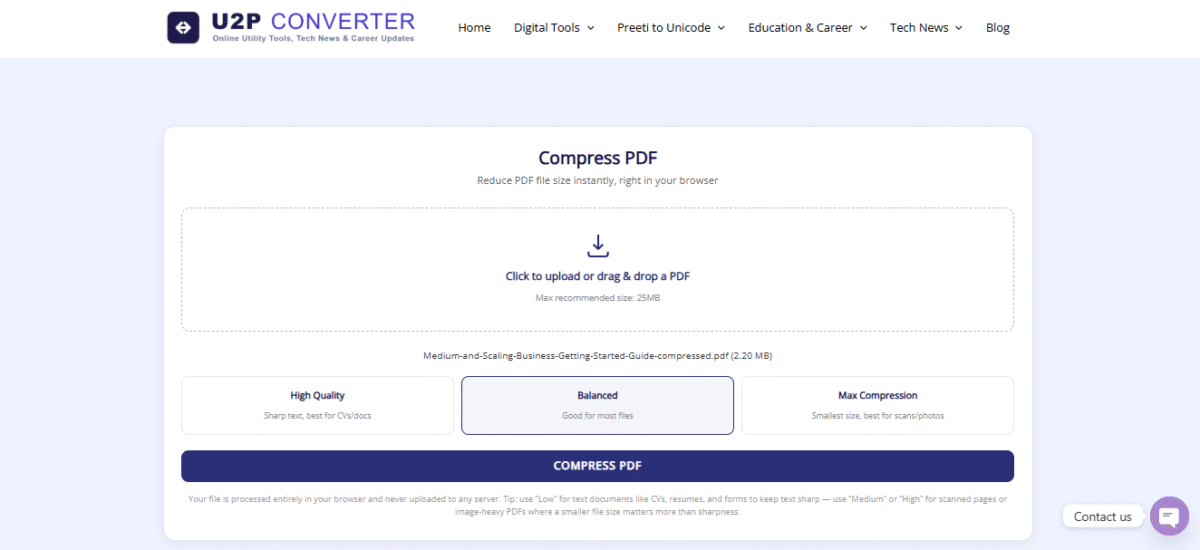
Remember this simple tip:High Quality for text-heavy files, Max Compression for files with scans/photos, and Balanced for everything else.
What to keep in mind while compressing PDF
- If the file contains legal documents or important signatures, use the “High Quality” option to maintain clarity.
- After compressing the file, check once to see if the text or images are blurred.
- Using “Max Compression” can significantly reduce image quality, so select the appropriate option based on your needs.
- If you frequently have to convert Word documents to PDF or Have to convert from Preeti to Unicode, So our There are more useful tools available in the Digital Tools section. Otherwise, you directly You can go to the Home Page Where all the tools are provided.
Reducing PDF file size is no longer a difficult task. With just one click, you can convert your bulky PDF into a small, fast, and easily shareable file, all without uploading your data to a server. Whether you need to send a resume, submit a form, or simply save storage space, this free online PDF Compressor tool is the perfect solution.
So the next time a PDF file gives you a “too large” error, head straight to the tool above, drop your file in, and download the compressed PDF in seconds.
conclusion
Reducing the size of a PDF is extremely useful when you need to email a document, upload it to an online form, or share it with someone else.
above named PDF Compressor Tool It’s designed to make this task easy. All you have to do is upload the PDF, select your desired quality, and download the new PDF once the compression is complete.
If you want to take both quality and file size into account, then first Very Clear Come High Quality Starting with the Option option is a good option. You can also try the Standard or Compact options later, depending on your needs.
Frequently Asked Questions | PDF Compressor FAQ
1. What happens by compressing PDF?
PDF compression reduces the size of a PDF file, making it easier to upload, share, and store.
2. Is this PDF Compressor Free?
This tool’s interface and code are designed for PDF compression without the need for a paid subscription. Access rules specific to your website may apply.
3. Can I compress PDF from mobile?
Yes. Thanks to the responsive interface, you can upload and compress a PDF in a supported mobile browser.
4. Do I need to install software to compress PDF?
No. There’s no need to install separate PDF compression software to use this browser-based tool.
5. Is my PDF uploaded to a server?
The processing logic of this tool is designed for browser-side processing. PDFs do not need to be uploaded to an external server for compression.
6. Which Compression Quality is the best?
It depends on your needs. For better clarity Ultra Sharp Come Very Clear while for smaller file sizes Standard Come Compact You can try it.
7. Can the quality of PDF be reduced after compression?
Yes, the visual quality of images or scanned pages may be reduced depending on the compression level. Choose a higher-quality compression option to preserve more quality.
8. Can very large PDFs be compressed?
The tool is designed to process large PDF documents, but actual processing speed and success may depend on your browser, device memory, PDF size and number of pages.
9. Where is the compressed PDF saved?
After the compression is complete the Download Compressed PDF button appears. Click on it to save the compressed PDF to your device.
10. What to do if PDF does not become smaller even after compression?
Compressing a PDF doesn’t result in the same amount of size reduction. If the PDF is already optimized or contains primarily text/vector content, the size change may be minimal. In such a case, you can try again by selecting a different compression quality.